H.01
Application Credential Setup
Guide
Create The Credential
Milkshake authenticates to your target OpenStack project with an application credential. Application credentials prevent over-exposure of your primary login secrets; they are essentially time-limited, RBAC'd tokens. Create a dedicated one for your migration. No roles are required; it inherits your existing capabilities. You paste its id and secret into the Milkshake entry page.
Skyline (GUI)
- Open the Skyline UI and go to User Center.
- Select Application Credentials, then click Create Application Credential.
- Give it a name and an expiration date long enough to perform your migrations, or a new credential will be needed after it expires.
- Leave Roles empty; the credential inherits your current capabilities. Click OK.
- Save the credential locally; the secret is shown only once.
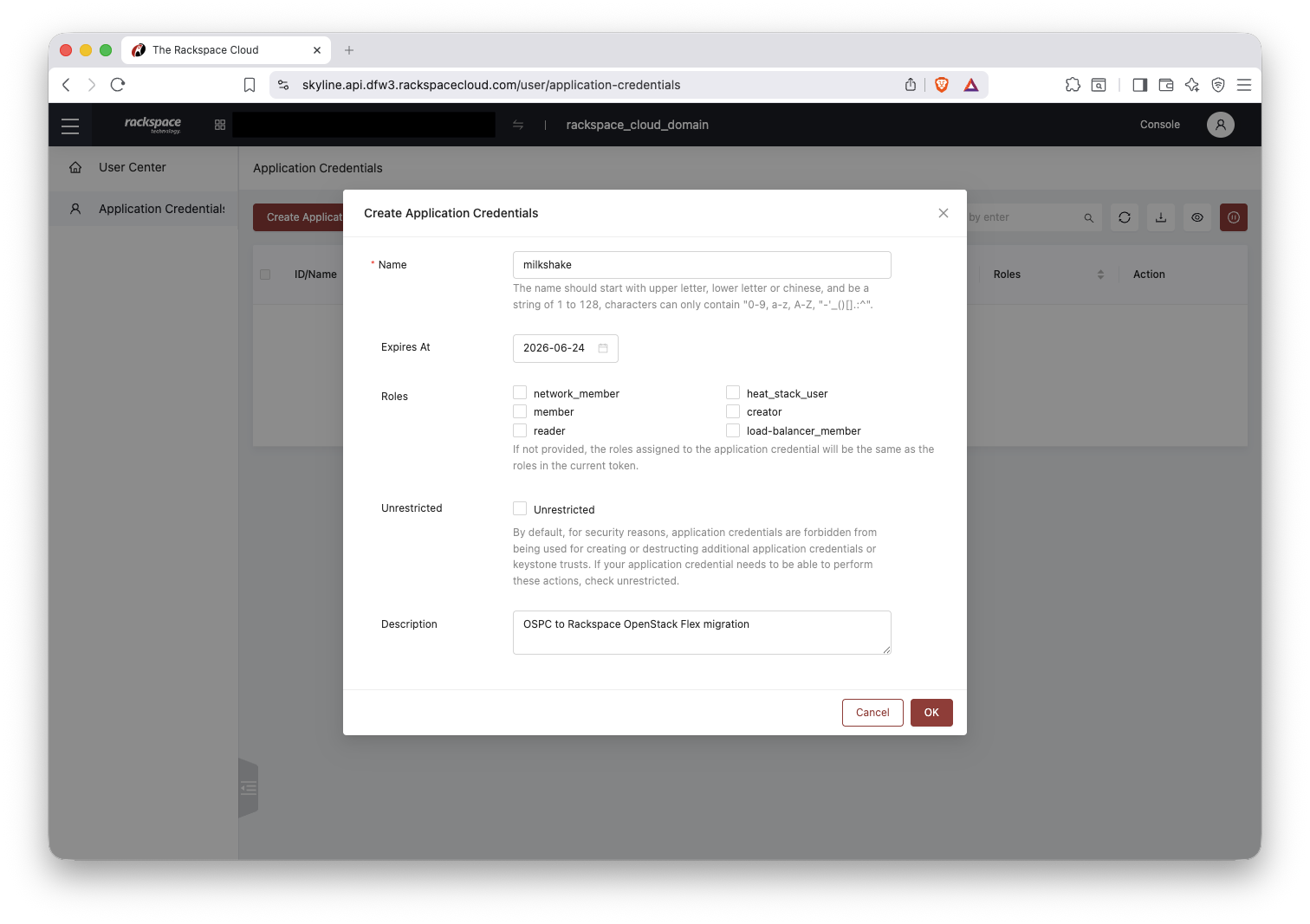
Open the saved credential and copy the id and secret to log in:
{
"id": "05c2019cb581111d90d703348b4a2047",
"description": "OSPC to Rackspace OpenStack Flex migration",
"project_id": "35839fed2791dc296b658018e4629c38",
"expires_at": "2026-06-25T04:59:59.999000",
"secret": "MyYoegcdLJ0gSDj7fgF4uN1234_LYuPa7MUvak8Pq3gD7H4vC1234dp_VzvCxxV-XyyAmdv9e70IToaam4zZ4Q"
}
OpenStack CLI
Or create the same credential from the command line:
openstack application credential create milkshake \
--description "OSPC to Rackspace OpenStack Flex migration" \
--expiration 2026-06-25T00:00:00 \
-f yaml
id: 05c2019cb581111d90d703348b4a2047
name: milkshake
project_id: 35839fed2791dc296b658018e4629c38
secret: MyYoegcdLJ0gSDj7fgF4uN1234_LYuPa7MUvak8Pq3gD7H4vC1234dp_VzvCxxV-XyyAmdv9e70IToaam4zZ4Q
expires_at: "2026-06-25T04:59:59.999000"
The secret is shown only at creation. If you lose it, delete the credential and create a new one.